How to Build a Shopify P&L Report That Actually Tells You the Truth
Stop exporting spreadsheets every month. Here's how to automate your Profit & Loss statement in Shopify — and finally see where your money is really going.
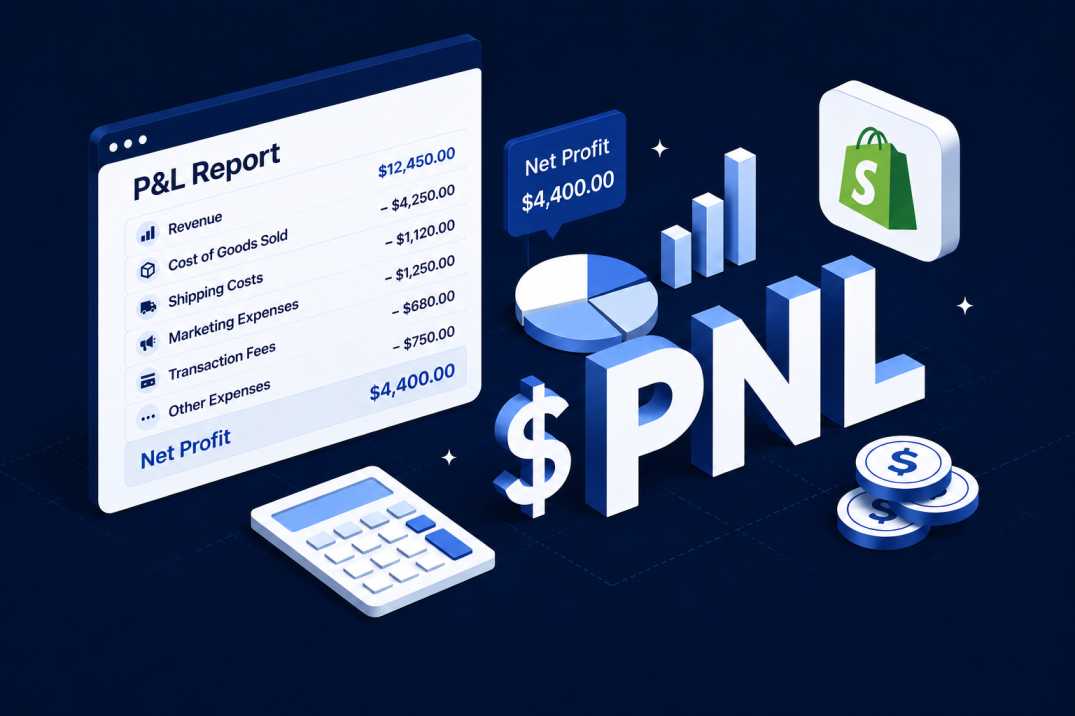
If you've ever sat down at month-end to figure out whether your Shopify store actually made money, you know the pain. You export orders from Shopify.
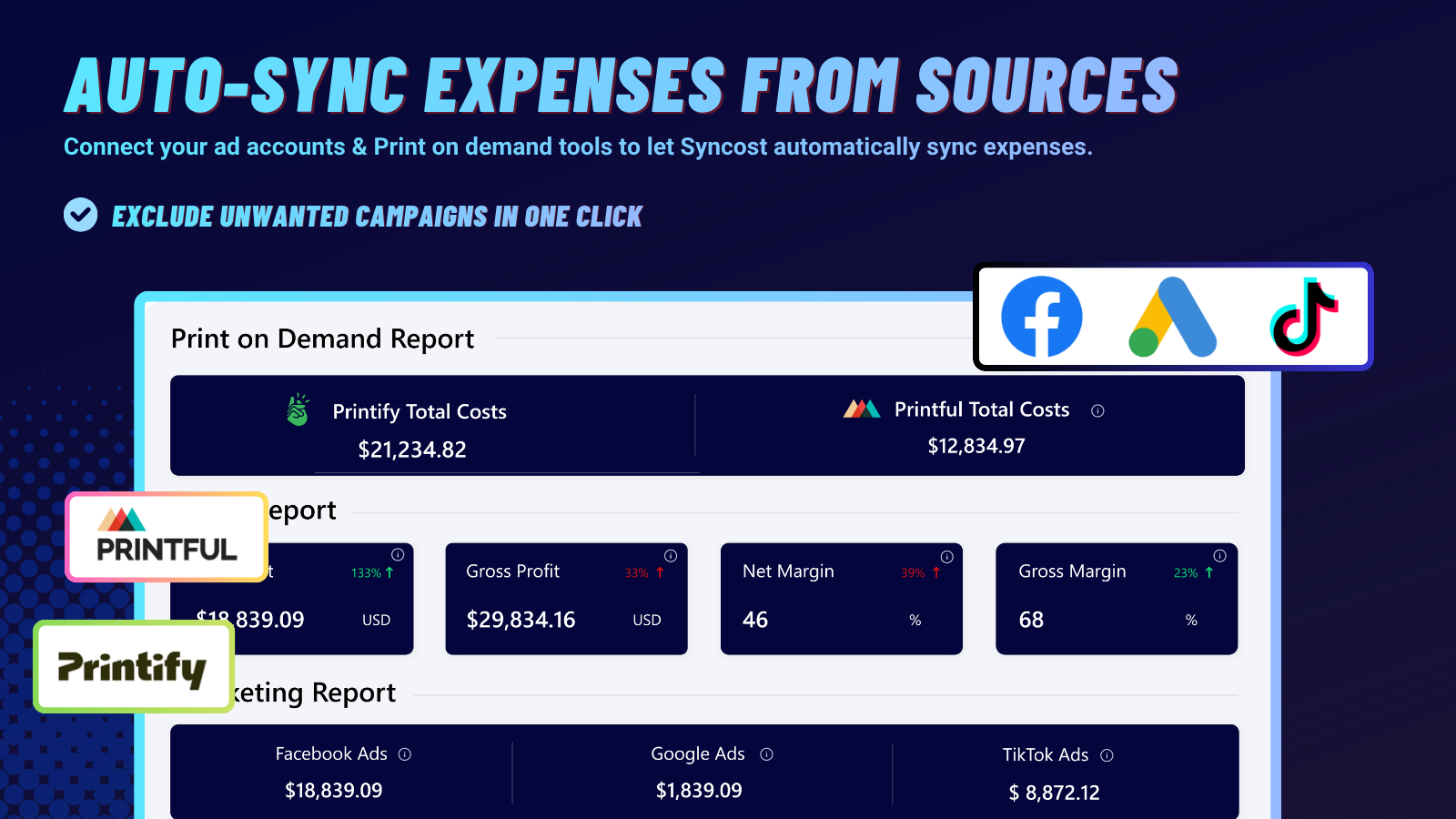
Pull ad spend from Facebook, Google, and TikTok. Dig up your Printify or Printful invoices. Add up Shopify fees, shipping labels, refunds, and that random app subscription you forgot about.
Three hours later, you have a messy spreadsheet — and you're still not sure if the numbers are right. There's a better way. It's called a P&L report (Profit & Loss statement), and when it's built correctly for Shopify, it transforms from a monthly chore into a real-time decision-making tool.
What Is a P&L Report for Shopify?
A P&L report summarizes your store's financial performance over a specific period. It answers one question: Did we make money or lose money?
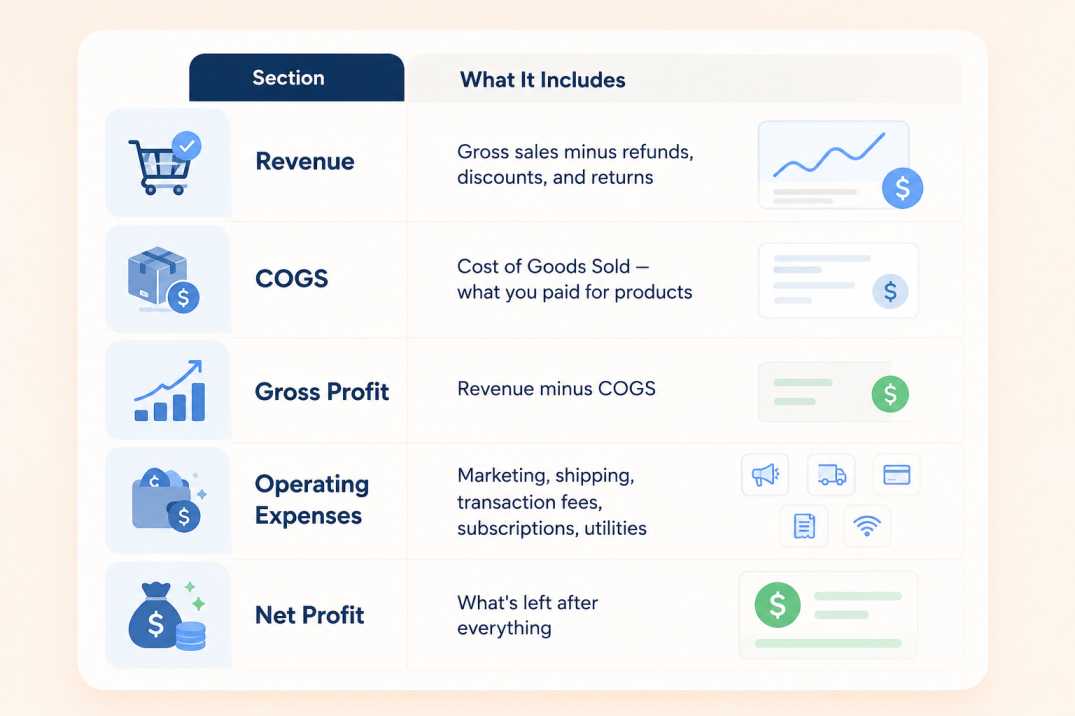
A proper Shopify P&L breaks down into:
Why Shopify's Native Reports Fall Short
Shopify has a "Finances Summary" and "Profitability Report." Here's what they give you:
✅ Gross sales and net sales
✅ Basic COGS (if you entered "Cost per item")
✅ Refunds and discounts
Here's what they miss:
❌ Ad spend — Facebook, Google, TikTok costs aren't connected
❌ POD costs — Printify/Printful production and shipping fees
❌ Shipping costs — what you paid, not what customers paid
❌ Transaction fees — Shopify Payments, PayPal, third-party gateways
❌ Custom expenses — rent, utilities, subscriptions, telephone
❌ Daily granularity — you only see month-level summaries
So you get a "profit" number that's actually just gross profit — revenue minus COGS. It ignores the 20-40% of your revenue that goes to ads, fees, and overhead.
The Manual Method: Building a P&L in Spreadsheets
If you're not ready to automate, here's the manual process most merchants use:
Step 1: Export Revenue Data
Shopify → Analytics → Reports → Finances Export "Sales over time" and "Finances summary" Include: gross sales, discounts, refunds, net sales
Step 2: Gather Cost Data
COGS: Export products with "Cost per item" fields Ad spend: Download reports from Facebook Ads Manager, Google Ads, TikTok Ads Shipping: Pull from your shipping label provider (Shippo, Pirate Ship, Shopify Shipping) Transaction fees: Calculate from Shopify's payment report (2.4-2.9% + $0.30 per transaction) Expenses: Compile your monthly bills
Step 3: Build the Formula
Net Profit = Revenue
- COGS
- Shipping costs
- Transaction fees
- Ad spend (all channels)
- Custom expenses
The Automated Method: Real-Time P&L for Shopify
The moment you scale beyond a few dozen orders per month, manual P&L tracking becomes a liability. Here's what automation should look like:
1. Auto-Sync Revenue
Every order, refund, discount, and tax adjustment flows in automatically from Shopify. No exports. No CSV juggling.
2. Live COGS Tracking
Pull "Cost per item" directly from Shopify Bulk-edit variant-level costs when suppliers change prices Support for estimated percentage costs when exact COGS isn't available
3. Multi-Channel Ad Spend
Connect Facebook Ads, Google Ads, and TikTok Ads. See daily spend alongside revenue — not in separate dashboards.
4. POD Integration
If you use Printify or Printful, production costs, shipping charges, and fulfillment fees should auto-populate per order. No more guessing your POD margins.
5. Transaction Fee Calculation
Automatically apply Shopify Payments rates (2.4-2.9% + $0.30), PayPal fees, or custom gateway rates to every order.
6. Custom Expense Tracking
Set recurring costs: Daily (utilities, labor) Weekly (contractor payments) Monthly (Shopify subscription, apps, telephone) One-time (equipment, bulk supply purchases)
7. Daily P&L Dashboard
Instead of waiting for month-end, see: Today's net profit This week's trend Month-over-month comparison Which days were profitable vs. which bled money
8. Export-Ready Reports
Download clean P&L statements for your accountant or tax preparer — formatted and ready to go.
8. Export-Ready Reports
Download clean P&L statements for your accountant or tax preparer — formatted and ready to go.
Common P&L Mistakes Shopify Merchants Make
1. Confusing Gross Profit with Net Profit
Gross profit = Revenue - COGS Net profit = Revenue - COGS - ALL expenses A 50% gross margin sounds great until you subtract 30% in ads and 10% in fees. You're left with 10% net — or nothing.
2. Ignoring Refunds and Chargebacks
Returns aren't just lost revenue — they're lost COGS, lost shipping, and sometimes restocking fees. Your P&L must account for them in real-time.
3. Forgetting Transaction Fees
Shopify Payments takes 2.4-2.9% + $0.30 per transaction. PayPal takes 2.9% + $0.30. On a $10,000 month, that's $300+ in fees you can't ignore.
4. Not Attributing Ad Spend to Orders
ROAS (Return on Ad Spend) tells you campaign efficiency. But your P&L tells you actual profit after all costs. A campaign with 4x ROAS might still be unprofitable if COGS and shipping are high.
5. Month-End Only Reporting
By the time you build your P&L 30 days later, you've already spent money you shouldn't have. Daily visibility lets you cut losing campaigns before they drain your account.
How to Set Up Your First Automated P&L
Option A: The Free Start (Manual)
- Create a Google Sheets template with the P&L structure above
- Set calendar reminders to update it weekly
- Export Shopify data and pull ad reports manually
- Accept that it's time-consuming and error-prone
Option B: The Scalable Path (Automated)
- Connect your Shopify store to a profit analytics app
- Link your ad accounts (Facebook, Google, TikTok)
- Add POD integrations if applicable (Printify, Printful)
- Input your custom expenses (subscriptions, utilities, etc.)
- Set shipping cost rules (flat rate, weight-based, or by country)
- Review your live P&L dashboard daily Time to first report: Under 7 minutes Ongoing time: Zero — it's automatic
P&L Report Checklist for Shopify Merchants
Before you call your P&L "complete," make sure it includes:
Revenue (gross sales minus refunds and discounts)
COGS (product costs, including variant-level tracking)
Shipping costs (what you paid, not customer-paid)
Transaction fees (Shopify Payments, PayPal, gateways)
Ad spend (Facebook, Google, TikTok — all attributed)
POD costs (Printify/Printful production + fulfillment)
Custom expenses (subscriptions, utilities, rent, telephone)
Daily granularity (not just monthly summaries)
Export capability (for your accountant)
Conculstion
A P&L report isn't just accounting hygiene — it's your store's financial GPS. Without it, you're driving with a fogged windshield.
Manual spreadsheets work when you're small. But the moment you run ads, use POD, or process more than a handful of orders daily, automation becomes essential. The merchants who scale profitably aren't the ones with the most revenue. They're the ones who know their numbers — every single day.
Get Your Free P&L Dashboard → Syncost builds automated P&L reports for Shopify. COGS, ad spend, shipping, fees, POD costs — all in one real-time dashboard. Start free.