How to Track COGS in Shopify (And Actually See Your Real Profit)
Stop guessing your margins. Here's the complete guide to tracking Cost of Goods Sold in Shopify — from manual setup to full automation.

If you're running a Shopify store, you've probably stared at your dashboard and wondered: "Where's my actual profit?"
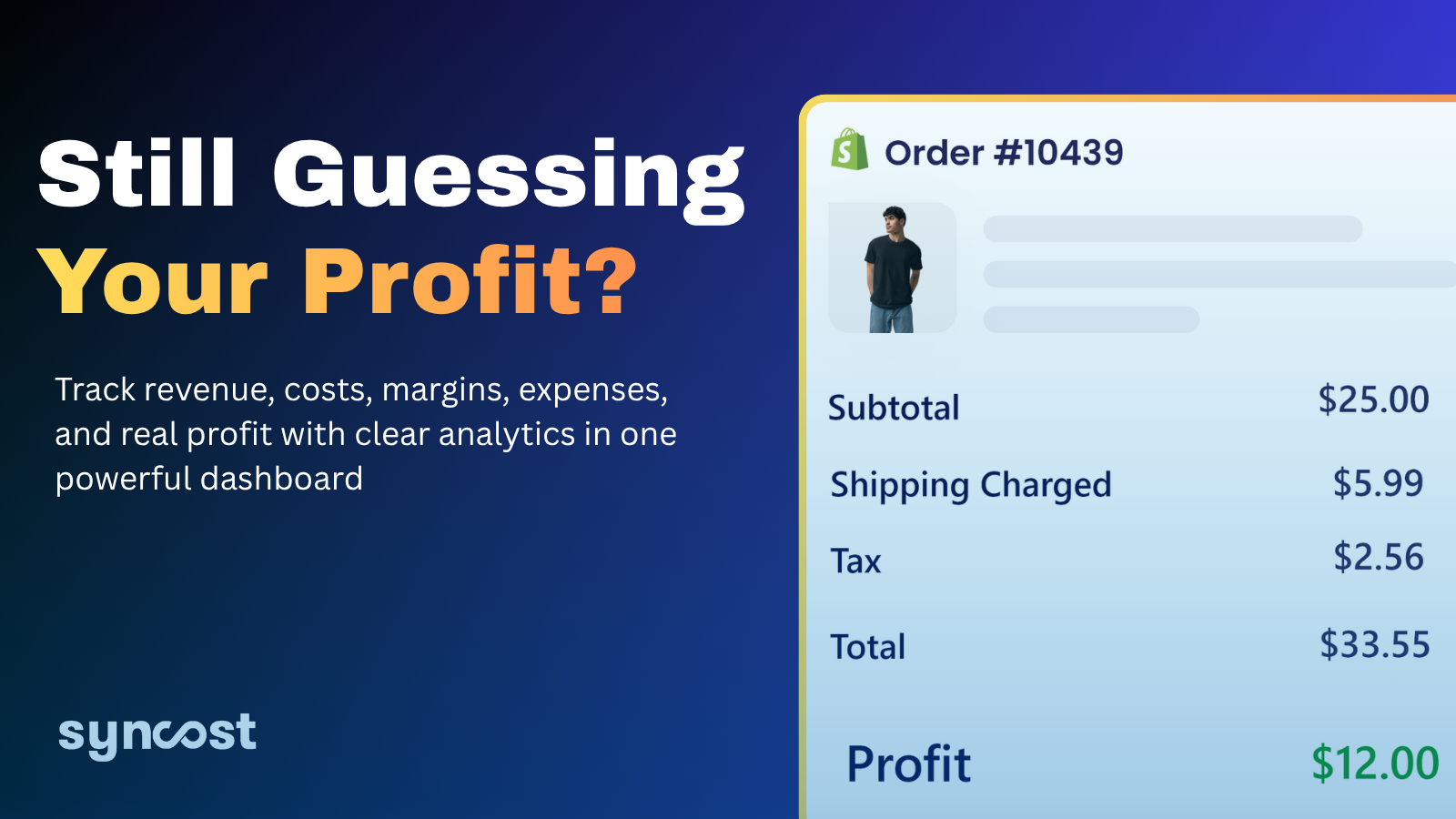
Shopify shows you sales. It shows you traffic. But when it comes to understanding what you really earned after product costs, shipping, transaction fees, and ad spend?
You're left doing math in spreadsheets — or worse, guessing. The missing piece is COGS tracking (Cost of Goods Sold). Get this right, and you'll know your true profit on every order. Get it wrong, and you could be losing 15–20% of your margin without realizing it.
In this guide, we'll show you exactly how to track COGS in Shopify — from the native manual method to automated solutions that save hours and eliminate errors.
What Is COGS (And Why Shopify Stores Get It Wrong)
COGS = the direct costs of getting a product to your customer. This includes: Product/material costs Supplier shipping (freight in) Packaging Direct labor (if you make your own products)
It does NOT include:
Marketing/ad spend Shopify subscription fees Rent, utilities, or software Your salary Here's the problem: Shopify's built-in "Cost per item" field accepts one static number. It doesn't update when your supplier changes prices. It doesn't account for multi-ingredient recipes if you're a maker. And it definitely doesn't pull in your Facebook Ads, Google Ads, TikTok spend, or Printify/Printful production costs. The result? Most merchants are working with outdated COGS data — and making pricing decisions based on fiction.
Method 1: Manual COGS Tracking in Shopify (Good for Starters)
Shopify does have a basic COGS feature. Here's how to set it up:
Step 1: Enable Inventory Tracking
Go to Products in your Shopify admin Select a product → scroll to Inventory Check "Track quantity" Step 2: Add Your Cost Per Item In the same product, scroll to Pricing Enter your cost in the "Cost per item" field Save
Step 3: View the Profitability Report
Go to Analytics → Reports Find Profitability Report under Finances See COGS as a percentage of total sales The Catch
This works for small catalogs with stable pricing. But as you grow, you'll hit these walls:
❌ Costs don't auto-update when suppliers change prices ❌ No support for multi-ingredient products (handmade sellers) ❌ Doesn't include shipping, transaction fees, or ad spend ❌ Manual bulk updates are time-consuming and error-prone If you're doing $100K+ annually or running ads, manual tracking becomes a bottleneck. Method 2: Automated COGS & Profit Tracking (For Scaling Stores) Once you're managing more than a few dozen products — or running ads across Meta, Google, and TikTok — you need automation.
Here's what true profit tracking should include:
✅ Real-Time COGS Sync
Your cost data should update automatically as supplier prices change, not require manual entry per product.
✅ Order-Level Cost Breakdown
Every order should show: Product cost (COGS) Shipping cost Transaction fees (Shopify Payments, PayPal, etc.) Ad spend attribution (Facebook, Google, TikTok)
✅ Multi-Channel Ad Spend Integration
Most stores lose profit visibility because ad spend lives in separate platforms. Your profit tool should pull in: Facebook & Instagram Ads Google Ads TikTok Ads ...and attribute them to actual orders, not just sessions.
✅ POD Cost Tracking (Printify & Printful)
If you run a print-on-demand store, your "COGS" includes production + shipping + fulfillment fees. These vary by product and destination — making manual tracking nearly impossible. A proper system pulls these costs automatically from Printify and Printful into every order's profit calculation.
✅ Custom Expense Tracking
Monthly costs like: Shopify subscription Email software (Klaviyo) Apps and plugins Telephone, utilities, rent ...should all factor into your net profit automatically.
✅ Daily P&L Reports
Instead of waiting for month-end, you should see: Daily net profit Gross vs. net margin trends Which days were profitable vs. which bled money
How to Calculate Your True Net Profit
Here's the formula every Shopify store should be using: plain\
Net Profit = Revenue (after refunds)
- COGS
- Shipping costs
- Transaction fees
- Ad spend (Facebook + Google + TikTok)
- Custom business expenses
Gross Profit Margin = (Revenue - COGS) / Revenue × 100
A healthy DTC brand typically targets 40–60% gross margin and 10–20% net margin. If you don't know your numbers? You're flying blind.
Why Most Shopify Profit Calculators Fail
Search "Shopify profit calculator" and you'll find basic tools that only handle:
Revenue - Cost = Profit
That's gross profit — not net profit. It ignores: Transaction fees (2.7–3.5% per sale) Shipping costs (often 10–20% of revenue) Ad spend (can be 20–40% of revenue for DTC brands) Refunds and chargebacks Subscription and app costs
A store showing $10,000 in sales might actually be losing money once all costs are included. That's why order-level, real-time tracking matters.
The Syncost Approach: Automated Profit Clarity
Syncost was built specifically for Shopify merchants who are tired of spreadsheet gymnastics.
Instead of manually entering costs and exporting data, Syncost:
1. Syncs your Shopify orders — products, refunds, taxes, discounts, payments 2. Pulls COGS directly from Shopify (or lets you bulk-edit variant-level costs) 3. Connects ad accounts — Facebook, Google, TikTok spend syncs daily 4. ntegrates POD platforms — Printify and Printful costs flow into every order 5. Tracks custom expenses — utilities, subscriptions, telephone bills 6. Calculates true net profit in real-time, per order and daily
What You Get
📊 Live Profit Dashboard — Net and gross margins across all channels 📈 Daily P&L Reports — See which days drove profit and which didn't 🔔 Inventory Alerts — Track variant-level COGS and stock health 📤 Export-Ready Reports — Download clean financials for your accountant 🌍 Shipping Cost Management — Set flat rates or weight-based rules by country
Real Merchant Results
+27% net margin improvement** in 120 days 30 Hours saved monthly on manual reporting Instant loss detection — unprofitable orders flagged immediately
Getting Started: 3 Steps to Accurate Profit Tracking
Audit your current COGS — Check if your "Cost per item" fields are accurate and up-to-date
Map your true costs — List every expense that should hit your net profit (ads, shipping, fees, subscriptions)
Automate the tracking — Connect your store, ad accounts, and POD platforms to a profit analytics tool
FAQ
Does Shopify calculate COGS automatically? No. Shopify provides a "Cost per item" field, but you must enter values manually. It doesn't auto-update or include shipping, fees, or ad costs.
What's the difference between COGS and expenses? COGS = direct product costs (materials, labor, shipping to you). Expenses = overhead (marketing, rent, software, salaries).
How do I track COGS for handmade products? Shopify's cost field doesn't support recipes or raw materials. You need a tool that calculates material costs per unit based on your actual purchases.
What's a good net profit margin for Shopify? Most healthy DTC brands operate between 10–20% net margin. If you're below 10%, audit your COGS and ad efficiency.
Can I track profit per order in Shopify? Not natively. You need a third-party profit analytics app that calculates order-level costs including COGS, shipping, fees, and attributed ad spend.
Bottom Line
Tracking COGS in Shopify isn't just an accounting exercise — it's the difference between a store that scales profitably and one that grows itself into bankruptcy. Start with Shopify's native tools if you're small. But the moment you run ads, use POD, or process more than a few dozen orders monthly, automation becomes essential.
Try Syncost Free → Real-time profit tracking for Shopify. COGS, ad spend, shipping, fees — all in one dashboard.